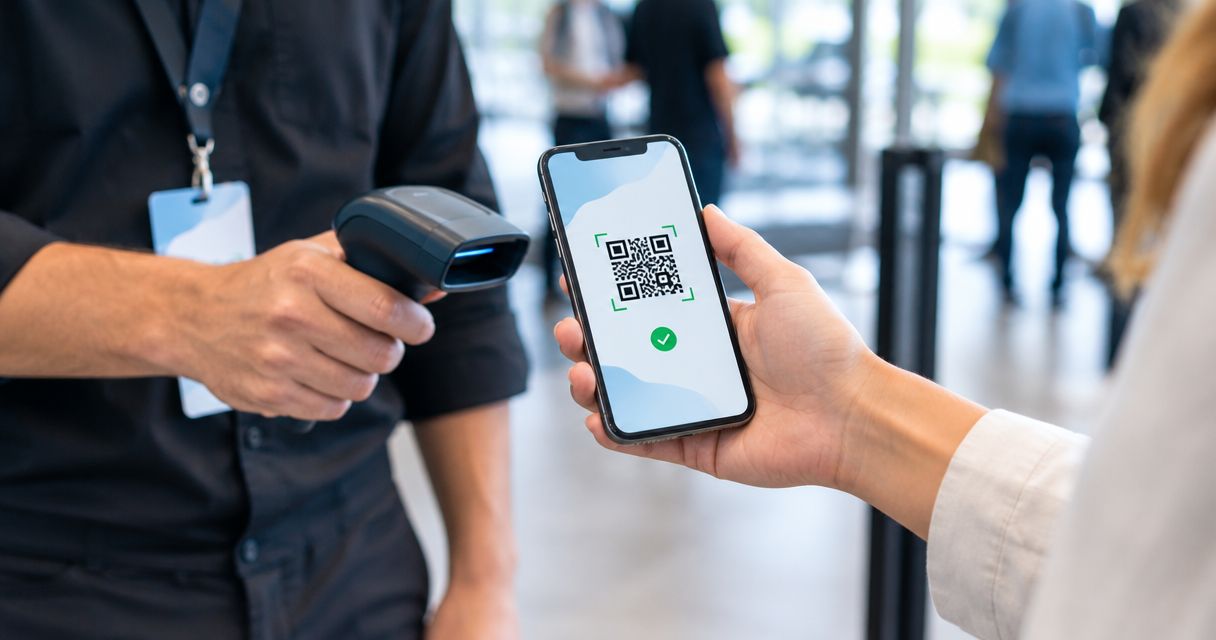
Every show has seats that never sold - and no one was working on them. Yes, a ticket scanning app can use a smartphone camera to read ticket codes without a separate scanner. The camera reads the code; the ticketing software must validate the ticket, check its admission status and record entry.
- For ticket scanning app smartphone use, choose ticket validation over a generic QR reader.
- A readable QR code is not proof that a ticket permits admission.
- ZunaroSpace event ticketing connects store, seating, box office, kiosk and door check-in on one live inventory.
- Test repeat scans, different entrances and connection loss before admitting guests.
Why this matters
Reading a ticket and admitting its holder are different jobs. A phone camera can recognise a code, but your door team needs an admission decision: accept, reject or resolve an exception. Treating a successful camera read as approval leaves that decision unfinished.
For your 2026 event plan, evaluate the whole entrance workflow rather than the scanner screen alone. The event check-in apps guide provides a starting point for comparing check-in workflows; the checks below establish what to demonstrate at your actual door.
Can a ticket scanning app work using just a smartphone camera?
Yes. The smartphone camera supplies the image, and scanning software decodes the ticket identifier. A ticketing check-in system then uses that identifier to determine whether admission is allowed and to record the result.
You do not need a separate scanning device merely to read a QR code. You do need software connected to the relevant ticket records. Opening a QR code in the phone's ordinary camera app is not equivalent to checking someone into an event.
| Approach | Best for | What it does | Limitation to check |
|---|---|---|---|
| Generic QR reader | Reading a code or opening its destination | Decodes the information in the QR code | Does not establish event admission by itself |
| Smartphone ticketing check-in | Organisers testing camera-based entry | Reads the identifier and applies the ticketing system's admission workflow | Camera access, ticket validation and synchronisation need testing |
| Dedicated scanner with ticketing software | Teams evaluating a separate scanning device | Supplies scanned identifiers to the connected software | A separate device does not replace ticket validation |
The distinction matters when a guest presents a screenshot, a ticket for another performance or a ticket already used elsewhere. Each code can remain readable. Your system must decide what that readable code means now.
Before choosing hardware for 2026, ask for a complete demonstration from scan to admission record. A camera animation or a decoded string proves only that the reading stage works.
What does the smartphone camera actually do?
The camera captures the ticket code from a screen or printed ticket. The scanning software interprets that image and extracts the encoded information. Neither step, on its own, establishes that the person should enter.
The check-in software supplies the operational decision. It needs to associate the identifier with the correct event or performance and apply the admission rules your team has configured.
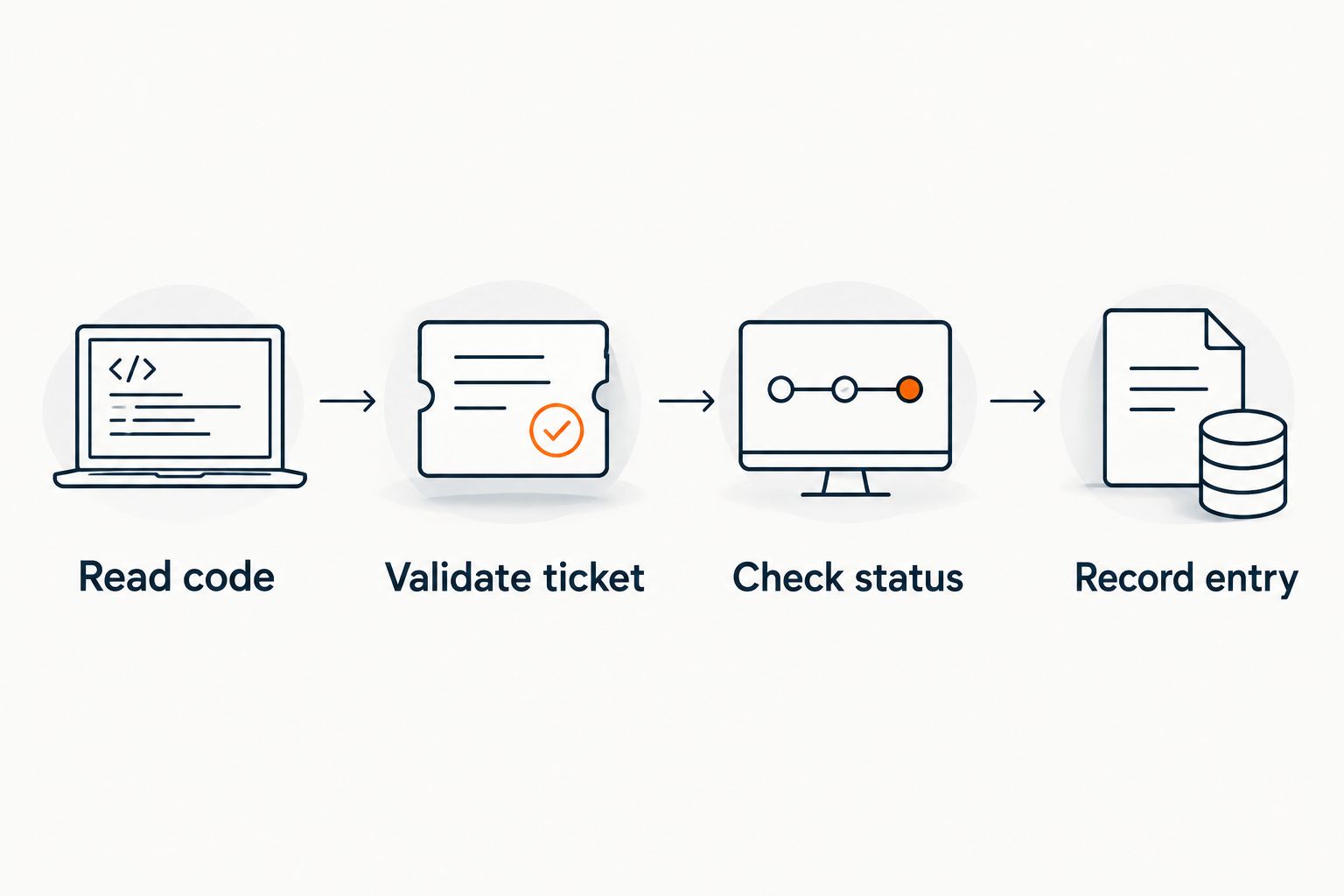
Keep these stages separate when you evaluate an app:
- Read code: Can the camera capture and decode the ticket?
- Validate ticket: Does the identifier match a ticket eligible for this entrance?
- Check status: Has admission already been recorded, or does another restriction apply?
- Record entry: Does acceptance update the ticket's admission record?
A failure at each stage needs a different response. An unreadable code calls for a presentation adjustment or another lookup method. A readable but ineligible ticket calls for an admission decision, not repeated scanning.
Give staff language that matches those distinctions. Asking them to report whether the code was unreadable, rejected or already used makes an exception easier to resolve than reporting that the scanner failed.
How do you test smartphone ticket scanning before an event?
Use the entrance, lighting and phones your team will actually use. A successful demonstration at a desk does not test the whole door workflow. Your 2026 rehearsal should cover normal admission and the exceptions that require staff judgement.
- Open the correct event. Confirm the performance, date and admission area before scanning. If the venue runs several sessions, make the selected session obvious to the operator.
- Grant camera access. Open the intended scanning interface and confirm that the phone can access its camera. Check the device and browser or app combination you plan to deploy.
- Scan a valid test ticket. Confirm that the operator sees an unambiguous admission result. Then inspect the ticket record to verify that entry was recorded.
- Scan the same ticket again. Establish what the operator sees and what the system permits. The repeat-scan result must match your admission and re-entry rules.
- Test another entrance. Use another staff device to check whether the admission status is visible there. This tests shared status rather than camera quality.
- Present an ineligible ticket. Use a ticket for a different session or another controlled test case. Confirm that staff can distinguish rejection from an unreadable code.
- Interrupt the connection. Establish what remains usable, what stops and what staff should do. Reconnect and inspect the resulting admission records.
Accept the workflow only when the admission record matches the door decision. A green screen without the expected record is not a completed test.
Write down the approved devices, the staff procedure and the escalation route. Keep those instructions accessible at the entrance rather than relying on the person who attended the demonstration.
Why smartphone scanning performance varies
The camera is part of the workflow, not the whole workflow. These factors determine what you need to test before opening the doors:
- Code presentation. Glare, a damaged printout or a partially obscured code can interfere with reading. Staff need a simple way to request a clearer presentation.
- Lighting and focus. Test the actual entrance position, including any shadows or reflections. Move the scanning position if the camera cannot capture a clear image there.
- Device permissions. Camera access must work in the intended app or browser. Recheck after changing devices or the scanning interface.
- Connection behaviour. Reading an image and retrieving current ticket status are separate operations. Establish how your chosen system handles an interrupted connection.
- Admission configuration. The selected event, ticket entitlement and re-entry rules determine the result. Correct hardware cannot compensate for the wrong session being selected.
- Staff procedure. Operators need to know which result permits entry and which requires escalation. A consistent procedure prevents an exception from becoming an improvised admission.
For 2026 procurement, ask vendors to demonstrate these conditions instead of supplying a scanning-speed claim. The useful evidence is whether your team can reach the correct decision under your venue's conditions.
Does smartphone ticket scanning work without internet?
Smartphone ticket scanning works without internet only when the chosen check-in software supports the required offline workflow. A camera's ability to read a QR code does not prove that the system can validate current ticket status or share admission records offline.
Ask what ticket information is available on the device before disconnection. Then establish whether separate entrances can see each other's admissions during the interruption and what happens when they reconnect.
Do not treat cached ticket data as proof of shared, current admission status. Your operating procedure must describe the actual behaviour demonstrated by the system. If that behaviour does not meet your entrance requirements, change the connection plan or the admission procedure before the event.
Can a smartphone scanner stop the same ticket being used twice?
A smartphone scanner can support duplicate-entry checks when the ticketing software records admission and checks that status on subsequent scans. The camera itself cannot prevent repeat admission; it can read the same code again.
Test the duplicate ticket on the original phone and at another entrance. Those are different checks. The former tests repeat handling on the scanning device; the latter tests how admission status reaches another operator.
Decide how legitimate re-entry works too. A duplicate warning needs an agreed response, not an automatic argument with the guest. Staff should know who can authorise an exception and where that decision is recorded.
Do guests need printed tickets for camera scanning?
Guests do not inherently need printed tickets for camera scanning: a smartphone camera can read a suitably displayed code from another screen. The ticket format and admission software still determine whether that code is usable for your event.
Give your door team a presentation procedure for screen glare, dim displays and unreadable printouts. If your software provides another lookup method, demonstrate it before including it in staff instructions.
Do not make the exception desk depend on an untested feature. A clear escalation path is better than promising that every damaged or missing ticket can be resolved through the scanner.
Where the ticketing platform fits
ZunaroSpace event ticketing is best for independent organisers and venues that want store, seating, box office, kiosk and door check-in on one live inventory. That shared inventory connects the selling workflow with the door, rather than treating admissions as a separate list.
For smartphone scanning, evaluate that platform fit separately from device compatibility. A shared inventory is relevant to check-in, but it is not evidence that every phone, browser or offline scenario meets your requirements. Demonstrate your intended entrance workflow before committing it to the staff plan.
ZunaroSpace supports branded storefronts, reserved seating and Arabic and English with full RTL. Its WhatsApp agent answers buyers, holds seats and hands over a checkout link. Events can also be discovered and booked inside ChatGPT and Claude, with checkout completed on the organiser's own site, never in chat.
AI that sells your tickets.
You keep the fees, the funds and the customers.
Organisers pay nothing per ticket. The buyer covers a booking fee of AED 3.99, or AED 1.99 for tickets under AED 20; free events carry none. Ask Zunaro Pro is AED 179 per month, with a 14-day trial and no card required.
Based at DTEC, Dubai Silicon Oasis. Built for the Gulf - the UAE and Saudi Arabia.
Evaluate your door workflow
Check the platform fit, then demonstrate scanning, admission status and exceptions on your intended devices.
FAQ
Can I scan event tickets with a normal smartphone camera?
Yes, a smartphone camera can read ticket codes through suitable scanning software. Event admission still requires ticket validation and an admission record; the ordinary camera app is not a complete check-in system.
What's the difference between a QR reader and a ticket scanning app?
A QR reader decodes the code, while a ticket scanning app connects that identifier to an admission workflow. Check whether the app validates the correct event, checks admission status and records entry.
Do I need a separate handheld scanner for event check-in?
No, a separate handheld scanner is not inherently necessary to read a ticket QR code. Test your smartphone workflow at the actual entrance before deciding whether another device is needed.
Will smartphone ticket scanning work if the venue loses internet?
Offline ticket scanning depends on the check-in software, not the camera. Test validation, separate entrances and reconnection before including offline admission in your operating plan.
Can the same ticket be scanned on two different phones?
The same code can be read by different phones, but admission depends on the ticketing system's status checks. Test whether an admission recorded at one entrance is recognised at another.
Can door staff scan a ticket displayed on another phone?
Yes, a camera can read a suitably displayed ticket code from another phone's screen. Test the ticket format, lighting and screen presentation you expect at the entrance.
Is ZunaroSpace suitable for independent venues managing sales and entry?
ZunaroSpace connects store, seating, box office, kiosk and door check-in on one live inventory for independent organisers and venues. Demonstrate the intended smartphone scanning and exception workflow before adopting a device-specific entrance plan.
One last thing
Test a readable ticket that should not admit its holder. That is more revealing than repeatedly scanning a valid ticket. The camera should read it; the admission system should reach the correct decision.
Before your 2026 event, make that distinction part of staff training. When the queue forms, the important question is not whether the phone saw a code. It is whether the organiser's admission rules were applied and the result recorded.