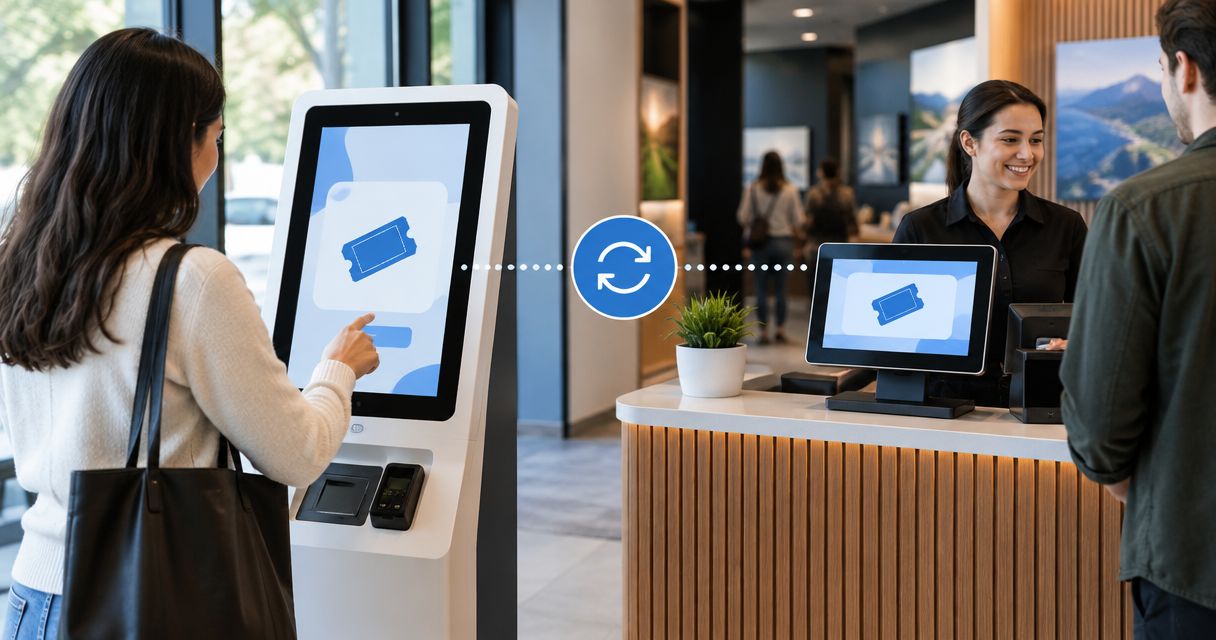
Instead of manually comparing door sales with online orders throughout 2026, put the kiosk and storefront on the same event record so every sale changes one live inventory. Zunaro removes the separate sync job: storefront, kiosk and box office all sell from the same seat map or general-admission capacity.
- Zunaro uses one live inventory to sync kiosk and storefront ticket inventory without a separate integration.
- Configure both channels against the same event and performance before doors open.
- A kiosk sale updates the shared seat map or general-admission capacity.
- Separate event records remain separate; selecting the wrong performance causes apparent mismatches.
Why this matters
A disconnected kiosk can sell a seat that an online buyer has already taken. Staff then face the problem at the door, when moving the buyer or correcting the order is hardest.
Event ticketing kiosk software should not maintain a private allocation that staff reconcile with online sales. In 2026, the safer structure is one event record feeding every active sales channel.
Zunaro is best for independent organisers and venues that want kiosk, storefront and box office sales on one live ticket inventory. The Zunaro event ticketing platform keeps those channels together instead of passing inventory between separate systems on a schedule.
Before you start
- Use an organiser account with access to the event, storefront and kiosk. Staff should know which event and performance they must open before sales begin.
- Set the reserved-seat map or general-admission capacity first. Zunaro can trace a seat map from a photo in about 60 seconds, but staff still need to confirm the resulting layout matches the venue.
- Check the event language and direction. Zunaro supports 2 languages, Arabic and English, with full right-to-left presentation for Arabic.
- Watch the non-obvious gotcha: a duplicate event or a different performance is a separate sales context. Two screens can look similar while pointing at different inventory.
Do this check before doors open in 2026. A correct event title is not enough when several performances share the same name.
How the shared inventory works
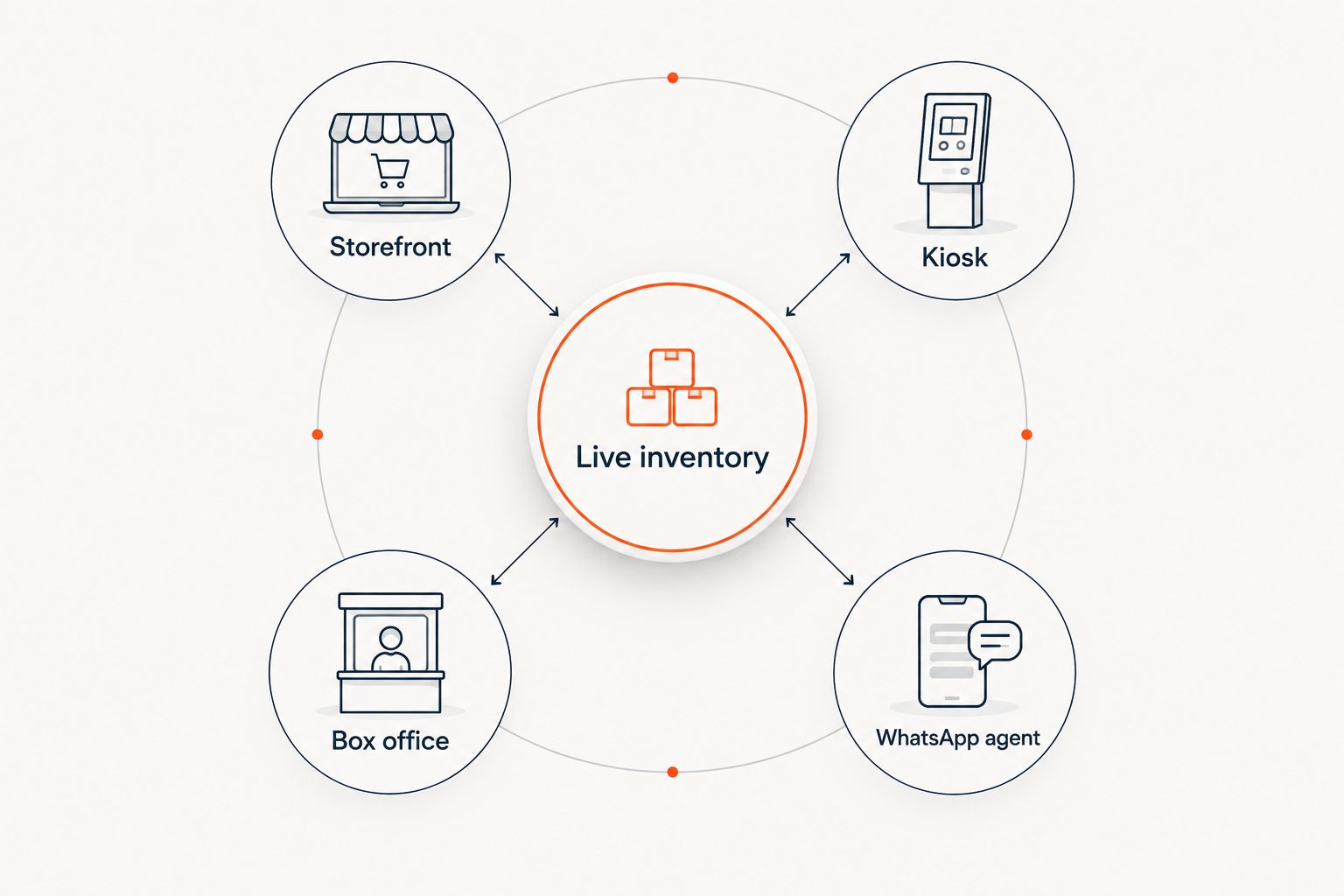
Zunaro has 3 core sales surfaces for this workflow: storefront, kiosk and box office. Each surface reads and changes the inventory attached to the selected event and performance. The WhatsApp agent also answers buyers, holds seats and hands over a checkout link against that event; payment still completes on the organiser's own site.
| Sales channel | Best for | What it does well | Trade-off to plan for |
|---|---|---|---|
| Storefront | Best for remote buyers | Lets buyers select tickets or reserved seats online | Does not provide staff assistance at the venue |
| Kiosk | Best for walk-up self-service | Sells from the same inventory at the entrance | Staff must open the correct event and performance |
| Box office | Best for staff-assisted sales | Handles buyers who need help choosing tickets or seats | Requires staff time for each order |
| WhatsApp agent | Best for conversational booking | Answers questions, holds seats and sends a checkout link | Payment does not complete inside WhatsApp |
The strength is structural: one sold or held seat is not offered independently by each channel. The constraint is structural too: a duplicate event does not become the original event merely because the titles match. Every selling device must point to the intended event and performance.
Choose one event record
- Open Events in the organiser workspace and select the event that buyers will see on the storefront.
- Confirm the venue, date and performance before changing inventory. If several performances use one event listing, select the exact performance the kiosk will sell.
- Review the reserved-seat map or general-admission capacity. Compare the map with the physical room, including sections, rows and seats that should not be sold.
- Confirm the ticket types intended for walk-up sales are attached to this event. Do not create a kiosk-only copy merely to separate door sales from online sales.
- Give staff the exact event and performance they should select. Include this in the opening checklist rather than relying on similar event names.
Expected result: one event record contains the inventory that the storefront and kiosk will use. Staff are not preparing a second allocation or an export file.
This is the key setup decision for 2026. If the event record is wrong, later checks only prove that two different inventories are behaving independently.
Publish the storefront inventory
- Open the event's Storefront view and confirm the correct performance is visible to buyers.
- Check that sellable ticket types appear. For reserved seating, open the real seat map and compare several sections with the organiser view.
- Verify that seats intentionally held back are not presented as sellable. For general admission, confirm the capacity reflects the number the venue intends to sell across every channel.
- Open the public storefront in a separate browser session. This removes organiser access from the check and shows what an actual buyer can select.
- Start a seat selection without completing payment, then return to the organiser view and confirm the selection behaves as expected. Release the selection before repeating the test with another seat.
Expected result: the public storefront displays the same seat map or capacity attached to the event record. There is no separate storefront inventory to import.
If buyers discover the event inside ChatGPT or Claude, they can search the event, pick a seat on the real map and hold it. Checkout still completes on the organiser's own site, so the storefront remains part of the transaction path.
Connect the kiosk to the same event
- Sign in to Kiosk with an account authorised to sell the event.
- Select the exact event and performance checked in the previous steps. Match the date as well as the title.
- Compare the kiosk seat map with the public storefront. For general admission, compare the remaining capacity instead.
- Select one currently sellable seat or ticket on the kiosk. Confirm that the storefront no longer presents the same inventory as independently selectable while the transaction is active.
- Complete one controlled sale using the venue's approved payment procedure. Confirm that the order belongs to the correct event before staff begin serving walk-up buyers.
- Check the storefront again. The sold seat must no longer be offered, or the general-admission capacity must reflect the completed sale.
- Repeat the check on every kiosk device planned for the event. Each device must use the same organiser workspace, event and performance.
Expected result: kiosk and storefront change the same live inventory. Staff can sell at the door while online sales continue without dividing capacity between the two channels.
Do this controlled check before the public rush in 2026. The purpose is not to test how quickly staff can sell; it is to prove that every device is attached to the same source of truth.
Add box office and WhatsApp sales
The adjacent workflow is adding assisted sales without creating another inventory pool. Use the existing event rather than rebuilding it for each channel.
- Open the same event in Box office and confirm the performance date before starting an order.
- Compare one reserved seat or ticket type with the kiosk and storefront. All 3 sales surfaces should refer to the same event inventory.
- If the WhatsApp agent is active, ask an event-specific question and begin a seat selection. The agent can answer the buyer, hold the seat and provide the checkout link.
- Confirm that the held seat is not offered to a kiosk buyer during the hold.
- Let payment finish on the organiser's own site. Do not tell staff or buyers that payment completes inside WhatsApp, ChatGPT or Claude.
- Confirm the resulting ticket can be delivered through WhatsApp as well as email.
Expected result: assisted and self-service sales affect the same event record. The organiser keeps one view of inventory instead of reconciling channel totals after the event.
Troubleshooting
The kiosk and storefront show different seats
Confirm the event and performance on both screens. Similar titles are the most direct explanation when one screen changes but the other does not. Close the wrong event and reopen the intended performance rather than adjusting capacity to force the totals to match.
A seat is unavailable but no completed sale appears
Check for an active seat hold or unfinished checkout. The WhatsApp agent can hold a seat before handing over the organiser's checkout link, so the seat can be unavailable without appearing as a completed order. Do not release a legitimate hold merely to make the map look open.
A completed kiosk sale is not visible online
Check the kiosk's network connection and confirm the transaction finished before attempting it again. Then reopen the storefront view and verify the event and performance. Repeating payment without checking the order can create a second transaction rather than repair the first.
Staff selected the correct event name but inventory still differs
Compare the date and performance, not only the title. Festival sessions, theatre performances and conference dates can share a public name while maintaining distinct inventory. Write the intended performance into the venue's 2026 opening checklist.
Check-in did not return a seat to inventory
Door check-in records entry; it is not a cancellation or seat-release action. A scanned ticket remains sold. Use the ticket QR code check-in workflow to train door staff on the difference between selling, holding and admitting.
Customize your workflow
Once the inventory check works, assign channel responsibilities. Kiosk staff handle walk-up self-service, box-office staff handle assisted orders, and the storefront remains open for remote buyers. The WhatsApp agent can answer buyers and hold seats without creating another allocation.
Add reporting only after the sales path is correct. Channel data cannot fix an event configured against the wrong performance. The Zunaro event ticketing platform should first show one consistent inventory; attribution and campaign reporting come next.
Set up one live inventory
Run storefront, kiosk and box office sales from the same event record.
FAQ
How do I sync kiosk and storefront ticket inventory in 2026?
Use the same Zunaro event and performance for both channels. The kiosk and storefront then read and change one live inventory rather than exchanging separate inventory files.
Does the kiosk need a separate ticket allocation?
No, the kiosk should sell from the event's shared seat map or general-admission capacity. A separate allocation creates manual reconciliation work and increases the risk of conflicting sales.
Can a storefront and kiosk sell the same reserved seat?
They do not maintain independent copies of the seat when both point to the same live inventory. A sold or held seat is removed from selection across the connected sales channels.
Why does a held seat look sold out at the kiosk?
An active checkout or WhatsApp seat hold can temporarily remove the seat from selection. Check the event's active transaction before changing inventory or releasing the seat.
Can buyers complete payment inside ChatGPT or Claude?
No, checkout always completes on the organiser's own site. Buyers can discover the event, choose a seat on the real map and hold it through the chat experience before moving to checkout.
Does scanning a ticket make its seat available again?
No, scanning records that the ticket holder entered the event. It does not cancel the order or release the sold seat for resale.
What should I check when kiosk and storefront totals differ?
Check the event, performance date, active holds and kiosk connection in that order. Do not alter capacity until both channels are confirmed against the same event record.
Can box office sales use the same inventory in 2026?
Yes, the storefront, kiosk and box office can operate on one live inventory. Staff must select the same event and performance on every sales surface.
One last thing
Do not end the test after both screens show the same starting number. Complete a controlled kiosk sale and confirm the storefront changes; matching static totals prove less than one real transaction moving through the 2026 workflow.
One live inventory also means one configuration mistake reaches every channel. Lock the event and performance into the opening checklist before staff begin selling.