
Instead of sending buyers through a platform-branded address, connect your domain to the Zunaro event ticketing storefront so discovery, seat selection and checkout stay under your name. In 2026, the setup is: choose a hostname, copy the DNS records shown for your storefront, add them at your domain provider, verify the route and test every booking path before launch.
- Connect custom domain to ticketing storefront by copying its DNS records into your domain provider.
- Choose a root domain or ticketing subdomain before changing DNS.
- Zunaro event ticketing platform is best for independent Gulf organisers that want a branded storefront.
- Keep existing ticket links active until the custom domain passes every launch check.
Why this matters
Your storefront domain tells buyers who owns the transaction. A venue using tickets.venue.com keeps its name visible from the event page through checkout instead of introducing another company at the point of sale.
Zunaro event ticketing platform is best for independent Gulf organisers that want their own branded storefront, box office and seating under one operating system. You keep the fees, the funds and the customers. The custom domain makes that ownership visible.
A domain change also affects links beyond the event page. Confirmation messages, campaign emails, QR codes, saved bookmarks and event listings can all send traffic to the storefront. Treat the switch as a controlled launch in 2026, not a cosmetic settings change.
Choose the right hostname
There are two valid configurations. The right one depends on whether your main domain already runs a website.
| Configuration | Best for | Main advantage | Main drawback |
|---|---|---|---|
Root domain such as venue.com | Organisers using the storefront as their main public website | Shortest possible address | Replaces the route currently serving the root domain |
Subdomain such as tickets.venue.com | Venues with an existing marketing or information site | Keeps the current website separate | Adds one word to the buyer-facing address |
Use the root domain when ticketing is the main purpose of the site. Use a subdomain when your current website still needs to host venue information, menus, schedules, sponsor pages or other material outside the storefront.
The common 2026 setup for an established venue is a ticketing subdomain. It separates the systems without separating the buyer journey: your main website links to the storefront, while the storefront carries events, reserved seating and checkout.
Before you start
- Domain access: You need permission to edit DNS at the provider currently responsible for the domain. The company that sold the domain is not always the company hosting its DNS.
- Storefront access: You need an account role that can open the domain connection area for the Zunaro storefront and view its required records.
- A hostname decision: Write down the exact address you plan to use.
tickets.venue.com,events.venue.comandvenue.comare three different DNS routes. - An existing-record inventory: Save the current DNS values before editing anything. This gives you a clean rollback if the root domain, email or another service stops resolving.
The non-obvious gotcha is the root domain. Standard DNS permits a CNAME on a subdomain, but many providers do not permit a conventional CNAME at the root. Providers solve this with A, ALIAS or ANAME records, or with CNAME flattening. Use the record type and value displayed for your storefront rather than translating them into a record you recognise.
DNS changes also take time to spread through recursive resolvers. A cached record can continue appearing until its time to live expires, so two people can receive different results during the same propagation window. Keep the existing storefront address available throughout the 2026 changeover.
Select the storefront hostname
- Open the domain connection area in your Zunaro account.
- Enter the full hostname you intend buyers to visit, including the subdomain when applicable.
- Check the spelling character by character. Do not include
https://, a page path or a trailing slash in a DNS hostname field. - Confirm that the root domain still belongs to your organisation and that no other production service already depends on the selected hostname.
- Generate or reveal the required DNS record set for that hostname.
Expected result: the storefront displays one or more DNS records with a record type, host or name, target or value, and possibly a verification value. Leave this screen open while you work at the domain provider.
Add the required DNS records
- Sign in to the provider responsible for the domain's DNS zone.
- Open the DNS record list for the correct domain.
- Compare the proposed hostname with existing records before adding anything. A duplicate A or CNAME record can create conflicting answers.
- Create each record using the exact type shown on the Zunaro screen.
- Copy the host field exactly. Providers often represent the root as
@, while a subdomain may appear as onlyticketsrather than the full hostname. - Copy the target or value exactly. Preserve punctuation and any verification string.
- Use the provider's default time to live unless your organisation has a documented DNS policy.
- Save the record, then reopen it to confirm the provider did not alter the host or append the domain twice.
Do not delete MX records while connecting the storefront. MX records direct email and are unrelated to website routing. Removing them can interrupt incoming email even when the storefront itself works.
Expected result: a public DNS lookup for the chosen hostname returns the new target or verification record. The storefront can remain unverified while cached answers expire.
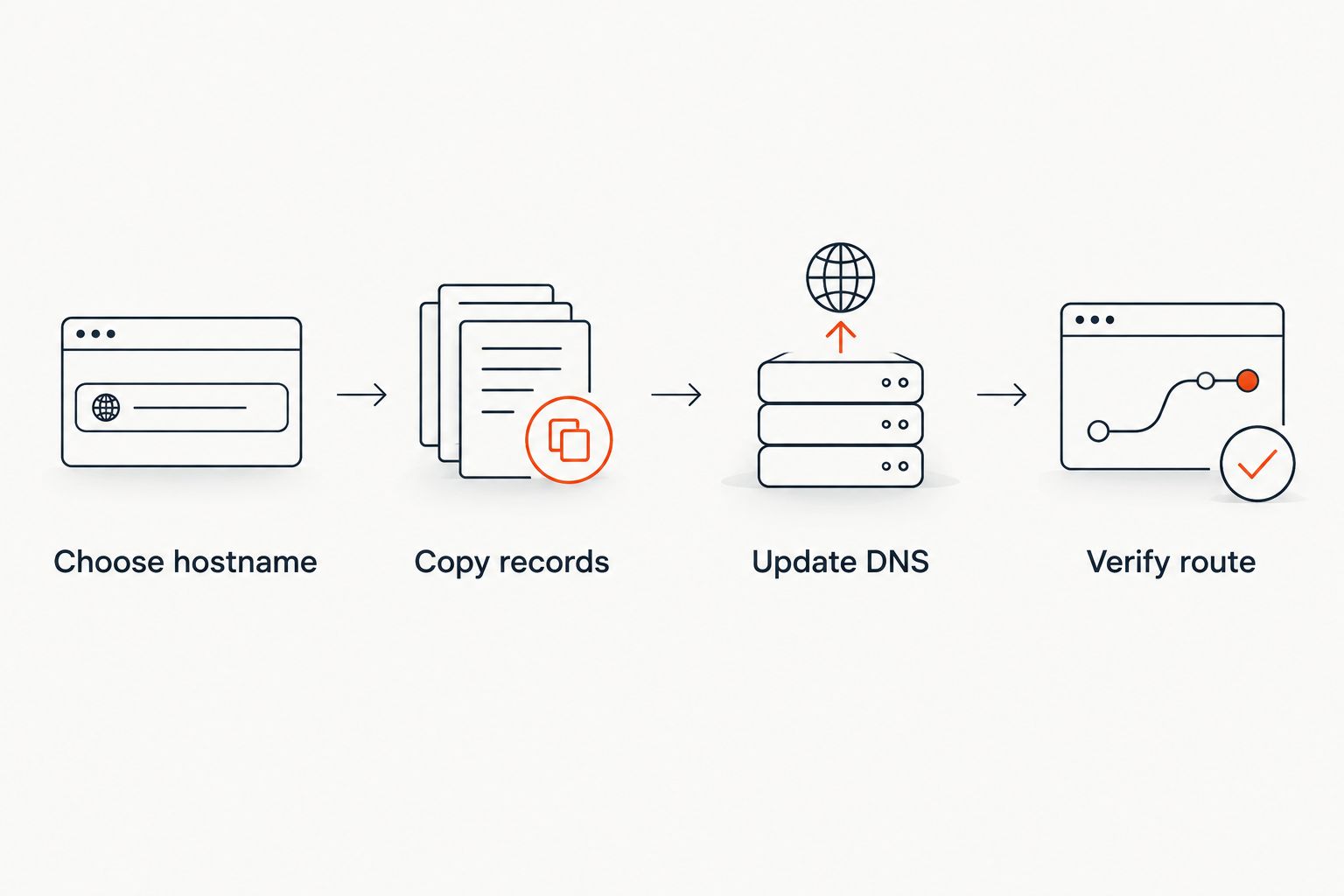
Verify the domain route
- Return to the storefront domain screen after the public DNS response matches the supplied values.
- Start the verification check provided there.
- If verification fails, compare the public DNS answer with the displayed requirement rather than repeatedly submitting the same configuration.
- Confirm that the custom address loads through HTTPS before sharing it. Do not launch a buyer-facing domain that produces a certificate warning.
- Test both the exact hostname and any alternate form you intend to support, such as the root and
wwwversions.
DNS propagation is not one central switch. A record can resolve on your office connection while an older cached answer remains on a mobile network. Allow up to 48 hours before treating a correctly entered but still-cached record as a persistent failure.
Expected result: the custom hostname opens the intended storefront over HTTPS without a security warning, redirect loop or provider parking page.
Make the custom domain primary
- Keep the original storefront address active while testing the custom route.
- Set the verified custom hostname as the buyer-facing storefront address using the domain controls available in your account.
- Open an event page in a private browser window and follow the path through ticket selection.
- For reserved seating, open the live seat map and confirm that selecting a seat stays on the expected domain.
- Continue to checkout and confirm that the browser remains on the organiser's site. ChatGPT and Claude can support event discovery, seat selection and holding, but payment completes on your storefront rather than in chat.
- Test links from email and WhatsApp, including an e-ticket link if one is available in your test flow.
- Check the box office, kiosk and door check-in workflows against the same live inventory.
Expected result: buyers reach the custom domain from every active channel, complete checkout there and receive working post-purchase links. Existing addresses either remain valid or redirect intentionally.
Put ticketing under your domain
Set up a Zunaro storefront, connect the domain and test the full buyer route.
Connect a subdomain while keeping your website
Use this second variant when venue.com already hosts a public website and ticketing needs to live at tickets.venue.com.
- Leave the root-domain website records unchanged.
- Add the ticketing subdomain to the storefront as the hostname you want to connect.
- Publish only the DNS records supplied for that subdomain.
- Add a navigation link from the existing website to the new ticketing address.
- Test the return path if your storefront links buyers back to the main website.
Expected result: venue.com continues serving the existing website, while tickets.venue.com opens the ticketing storefront. The two addresses remain operationally separate but visibly part of the same organiser brand.
This configuration also gives you a safer rollback. Removing or changing the ticketing subdomain does not replace the root website records. The drawback is link discipline: campaigns, profiles and printed material must use the exact ticketing hostname rather than sending buyers to the general homepage.
Troubleshooting
The hostname opens a parked page
The DNS change is reaching the domain provider's default destination rather than the storefront. Check for an older A, AAAA or CNAME record on the same hostname, then compare the public DNS answer with the target supplied during setup.
The domain verification stays pending
A pending check means the expected record is not visible to the verifier. Look for a host entered as tickets.venue.com.venue.com, a verification value with missing characters, or a record created in a DNS zone that is not authoritative for the domain.
Use an NS lookup to identify the authoritative nameservers. Edit the DNS where those nameservers are managed, not automatically where the domain was purchased.
The root works but www does not
The root domain and www are separate hostnames. Add and route both when you want both forms to work, then choose one canonical destination and redirect the other. Do not assume a root-domain record automatically covers www in 2026.
The domain loads but shows a security warning
Stop promotion until HTTPS works without warnings. Confirm that the hostname entered in the storefront matches the address in the browser exactly. Certificate coverage for venue.com does not automatically cover tickets.venue.com, and coverage for a subdomain does not automatically cover the root.
Buyers hit a redirect loop
A loop occurs when the domain provider forwards to the storefront while the storefront redirects back to another version of the same domain. Use DNS records for the primary route instead of stacking URL forwarding on top of storefront redirects. Keep one canonical hostname.
Email stops after the DNS edit
Restore the saved MX and email-related TXT records. Connecting a storefront does not require removing mail routing, SPF, DKIM or DMARC records. Replace only records that conflict with the selected web hostname.
Customise the connected storefront
A custom domain solves routing, not the rest of the sales journey. Check the pages and messages buyers encounter after arrival: event details, language direction, seat selection, checkout and ticket delivery.
For Arabic and English events, test both reading directions on the same connected domain. Full RTL support matters across the page, not just in translated text. Also test AED and SAR display against the event configuration without treating the domain as a market setting.
Next, connect post-sale communication. The guide to automatically sending WhatsApp ticket confirmations covers the adjacent workflow for delivering tickets when a sale completes. The WhatsApp agent can also answer buyers, hold seats and hand over a checkout link.
For the 2026 launch checklist, update campaign templates, social profiles, venue listings and printed QR codes only after the custom route is stable. Keep an inventory of old URLs so you can confirm each one redirects or remains available.
FAQ
How do I connect a custom domain to a ticketing storefront?
Enter the chosen hostname in the storefront domain area, copy its required DNS records to your domain provider, verify the route and test it over HTTPS. Use the exact record types and values supplied for that hostname.
Should my ticketing storefront use the root domain or a subdomain?
Use the root domain when the storefront is your main public website and a subdomain when an existing website must remain in place. A ticketing subdomain such as tickets.venue.com keeps the two systems separate.
How long does a custom domain take to connect?
A correct DNS record can appear quickly, but cached answers can remain for up to 48 hours. The configured time to live and resolver cache determine when each network sees the change.
Do I need to remove my current website before connecting ticketing?
No, connect ticketing to a subdomain and leave the root website records unchanged. Replacing root records is necessary only when the storefront will occupy the root domain.
Why is my ticketing domain still pending verification?
The verifier cannot yet see the expected DNS record. Check the authoritative nameservers, record type, host formatting and copied verification value before waiting longer.
Can a custom ticketing domain use HTTPS?
Yes, and the domain should not launch until it loads over HTTPS without a certificate warning. Test the exact root, www or subdomain hostname buyers will use.
Will old ticket links work after I connect my domain?
They work only if the original address remains active or redirects to the new destination. Test existing event, checkout, confirmation and e-ticket links before announcing the switch.
Can ChatGPT complete payment for an event on the custom domain?
No, ChatGPT and Claude can support discovery, seat selection and holding, but checkout completes on the organiser's own storefront. The custom domain remains the final buyer-facing payment route.
One last thing
The domain is not the only setup task that can shrink from technical work to a short workflow. A reserved seating map can be traced from a photo in about 60 seconds without CAD, which means the storefront domain, seat map and sales channels can all point at one live inventory rather than separate systems.
Run the domain test again before every major 2026 event launch. DNS ownership, redirects and certificates can change independently of the event configuration, and a private-browser check catches stale redirects that a logged-in administrator misses.