
Cross-checking last week's Zunaro sales report against Google Analytics traffic by hand tells you clicks happened somewhere, but not which channel actually put a seat in someone's cart. Wire GA4 straight into your Zunaro storefront once, tag your campaign and WhatsApp links, and every sale traces back to the click that caused it — correct for 2026 and every show after.
- Track ticket sales in Google Analytics by installing a GA4 purchase event on your Zunaro storefront's confirmation page.
- Tag every campaign and WhatsApp checkout link with UTM parameters so GA4 attributes revenue to the right channel.
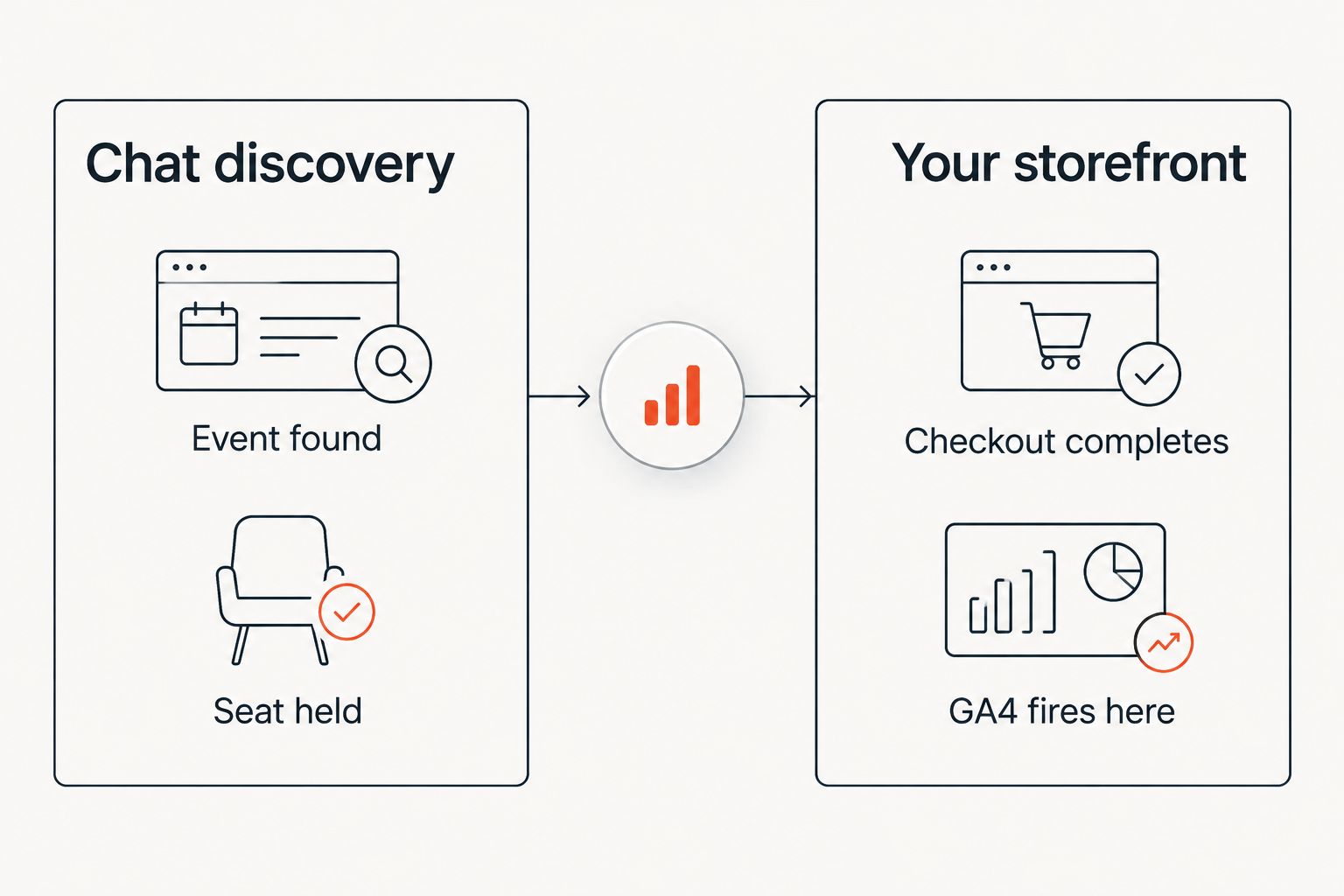
- Chat discovery in ChatGPT and Claude never shows up in GA4 — only the checkout on your own site does.
- Reconcile GA4 revenue against your campaign agent's attributed revenue report weekly to catch tracking gaps early.
Why this matters
GA4 tells you where traffic came from and what it did on the page. Zunaro tells you what actually sold and for how much. Neither one answers "which channel sold the seat" on its own — you need both talking to each other.
Because Zunaro sells from your own branded storefront rather than routing buyers through a third-party marketplace, the entire click-to-purchase path already lives on infrastructure you control. That's the same ownership logic behind keeping the fees, the funds and the customer relationship — you also keep the data trail, and nothing about connecting Zunaro to GA4 requires handing traffic through anyone else's domain first.
Before you start
- A GA4 property and a web data stream pointed at your storefront's domain — create one in Google Analytics if you don't already have it.
- Edit access to your storefront's page header or a Google Tag Manager container. You need to be able to paste a tracking snippet somewhere it loads on every page, including the checkout confirmation page.
- The gotcha: chat-based discovery inside ChatGPT and Claude never touches your GA4 property. Buyers find the event and hold a seat in chat, but checkout always completes on your own site — that's the only place tracking can live. Don't spend time trying to instrument the chat step; instrument the checkout instead.
Set up your GA4 property and data stream
- In Google Analytics, go to Admin and click Create Property. Name it after your organisation, set the reporting time zone and currency to match how you sell tickets.
- Under Data Streams, add a Web stream and enter your storefront's URL — the domain your Zunaro storefront actually runs on, not a generic placeholder.
- Copy the Measurement ID (starts with G-). You'll need it in the next step.
- Turn on Enhanced measurement for page views, scrolls and outbound clicks — this gives you baseline behavior data with no extra setup.
Expected result: your GA4 property shows a Realtime report populating with test traffic once the tag is live.
Add the tracking tag to your Zunaro storefront
- Paste the GA4 tag (or a Google Tag Manager container snippet, if you're using GTM) into the header code area of your storefront pages — wherever your Zunaro storefront lets you drop custom site code.
- Confirm the tag fires on the homepage, the event page, and — this is the one people skip — the checkout confirmation page, since that's the page that proves a ticket actually sold.
- Open your storefront in an incognito window and check GA4's Realtime report for an active user session.
Expected result: a live user shows up in Realtime within a minute of you loading the storefront.
Configure the purchase conversion event
- On the confirmation page your buyer lands on after paying, fire a purchase event with the transaction ID, ticket value and currency as parameters.
- In GA4, go to Admin > Events, confirm the purchase event is being received, then mark it as a key event (GA4's current term for a conversion) under Conversions.
- Set the currency to match what you sell in — AED, if you're pricing in AED for the Gulf.
Expected result: the Conversions report starts counting completed ticket sales, not just page views.
Tag every campaign link with UTM parameters
- Before sending a blast through your campaign agent, add
utm_source,utm_mediumandutm_campaignto the checkout link — for exampleutm_source=email&utm_medium=campaign&utm_campaign=opening-night. - Send the campaign as usual: preview the audience, check the rendered email, send a test, then schedule it.
- In GA4, check Reports > Acquisition > Traffic acquisition a day after the send — sessions and purchases should show up tagged under that campaign name.
Expected result: you can see, by campaign, how many sessions turned into purchase events — not just how many emails opened.
Track sales that start on WhatsApp separately
When a buyer chats with the Zunaro WhatsApp agent, holds a seat and gets handed a checkout link, that link is worth tagging the same way as a campaign link. Add utm_source=whatsapp&utm_medium=agent before it goes out, and GA4 will attribute the eventual purchase to WhatsApp instead of lumping it into direct traffic.
This matters more than it sounds like it should: WhatsApp-originated sales that land in "(direct) / (none)" in GA4 make the channel look invisible even when it's closing seats. Once confirmations go out automatically after the sale, you get a clean loop from hold to purchase — see the guide on automatic WhatsApp ticket confirmations for the confirmation side of that flow.
If GA4 shows more sessions than Zunaro shows tickets sold, the gap is almost always missing UTM tags, not broken tracking.
Troubleshooting
- GA4 shows sessions but zero purchases. The conversion event is firing on the cart page instead of the confirmation page. Move it to the page that only loads after payment succeeds.
- UTM tags disappear after the checkout redirect. Some link shorteners or redirect chains strip query strings. Test the full link path end to end before a campaign goes out, not after.
- Ad blockers suppress a chunk of your GA4 traffic. Expect a permanent gap between GA4 sessions and actual tickets sold — cross-check against your campaign agent's attributed revenue report rather than treating GA4 as the single source of truth.
- Cross-domain tracking breaks between storefront and checkout. If any part of your funnel sits on a different subdomain, add both domains under GA4's cross-domain measurement settings or sessions will split in two.
- Traffic spikes on announcement day with no matching purchases. Check for bot traffic before assuming your campaign underperformed — GA4's default bot filtering catches most of it, but announcement-day spikes deserve a second look.
Customize your workflow
Once purchase tracking is solid, import the GA4 conversion into Google Ads as a conversion action so retargeting spend goes toward buyers who look like people who actually bought, not just people who clicked. Reconcile GA4 revenue against your campaign agent's attributed revenue report every week — small gaps are normal, large ones usually mean a tag stopped firing.
Sell from a storefront you fully control
Own storefront, box office and kiosk on one inventory — with the data trail to match.
FAQ
What is the best way to track ticket sales in Google Analytics in 2026?
Install a GA4 purchase event on your storefront's checkout confirmation page and tag campaign and WhatsApp links with UTM parameters. That combination attributes every completed sale to the channel that caused it.
Does Google Analytics track sales that start on WhatsApp?
Only if the checkout link the WhatsApp agent hands over carries UTM parameters. Without tagging, those sales land in direct traffic and look untraceable in GA4.
Can I see ticket revenue from ChatGPT and Claude in GA4?
GA4 can't see the discovery or seat-hold step inside a chat assistant, because that happens off your domain. It can see the purchase once the buyer reaches checkout on your own storefront, provided the checkout link is tagged.
Why does GA4 show more sessions than tickets sold?
Most of the gap is normal browsing behavior — people who visit without buying. The rest is usually ad blockers suppressing the GA4 tag or a conversion event firing on the wrong page.
Do UTM parameters survive a checkout redirect?
Only if nothing in the redirect chain strips the query string. Test the full link path from campaign click to confirmation page before relying on it during a live sale.
Is GA4 enough, or do I still need my ticketing platform's own reports?
Use both. GA4 shows channel-level behavior; your platform's own attributed revenue report is the reconciliation check that catches when a GA4 tag has quietly stopped firing.
How long does GA4 setup take for a ticketing storefront?
Creating the property and adding the base tag takes under an hour. Getting the purchase conversion event firing correctly on the confirmation page is the part worth testing twice before a campaign goes out.
Does Zunaro send ticket sales data to Google Analytics automatically?
There's no separate push to configure because checkout already happens on your own branded storefront. Install the GA4 tag directly on that domain and it captures every purchase without a third-party integration step.
One last thing
Most organisers set up GA4, watch pageviews climb on announcement day, and never get around to the purchase conversion event — so the one number that actually matters, tickets sold by channel, stays invisible while everything else looks fine. Set up the conversion event before your first 2026 campaign send, not after the first sold-out show makes you wish you had.