
Every show has seats that never sold - and no one was working on them. Instead of manually copying ticket orders into your CRM, sync confirmed orders to contact and purchase records so your team can follow up from an accurate event history.
- Sync ticket buyer data to CRM using confirmed orders, contact matching and separate purchase records.
- Zunaro is event ticketing for independent organisers and venues that want control of their storefront and customer relationship.
- Confirm your available integration route before configuring automation; this guide does not assume a native connector.
- Keep consent, refunds and attendance separate from the original purchase.
Why this matters
A ticket order is a transaction, not a complete customer profile. Your CRM needs to connect that transaction to the right person without losing the event, performance or order history.
Zunaro is an event ticketing platform for independent organisers and venues, with a branded storefront, seating, box office, kiosk and door check-in on one live inventory. Zunaro is best for independent organisers and venues that want their ticketing platform and customer relationship under their own control. You keep the fees, the funds and the customers.
For your 2026 CRM setup, separate the ticketing platform's confirmed capabilities from the connection you intend to build. The workflow below describes the data contract and checks for an integration; it does not establish that a native CRM connector, webhook or API is available in your account.
The goal is simple: stop treating each purchase as a new person, and stop treating every purchaser as a subscriber.
Before you start
- Confirm the connection route. You need access to your ticketing account, permission to create and update CRM records, and a supported way to transfer order data. Verify the source events, accessible fields and authentication requirements before choosing an automation service or building a connection.
- Prepare the field mapping. Gather a sample confirmed order, an existing CRM contact and your consent fields. Identify the source order identifier, event identifier, buyer identifier where available, and transaction status.
- Separate buyers from attendees. A purchaser can buy for other people. Do not attach every ticket holder's attendance to the buyer's contact record, or treat an order confirmation address as permission to send promotional messages.
Gate the work here. If the available connection cannot provide a stable order identifier or distinguish confirmed orders from unfinished checkout activity, resolve that before enabling automatic CRM writes.
Order trigger
The trigger decides which ticketing activity becomes CRM data. Configure it around a confirmed order, rather than a page visit, seat selection or checkout link.
Define the source event
- Inspect the supported connection's documented events or export fields. Select the event that represents a completed, confirmed order.
- Record the source's definition of confirmation. Paid orders and confirmed free-event registrations need an explicit rule; payment alone does not cover both.
- Exclude incomplete checkout activity and temporary seat holds from purchase records.
- Preserve the original order identifier, event identifier and source timestamp in the transferred data.
- Document whether the connection sends each order once, repeats notifications, or supplies batches that overlap.
Expected result: a confirmed order enters the workflow with enough information to identify the purchase again. A seat hold does not appear as a completed purchase.
For the 2026 rollout, test the trigger with a representative order before connecting it to production contact creation. Read the actual payload or exported row. Do not build a mapping around fields that appear only in a sample supplied by a different system.
Choose the transfer pattern
Use the route your source and CRM actually support. These are integration patterns, not claims about available Zunaro connectors.
| Transfer pattern | Best for | Advantage | Limitation |
|---|---|---|---|
| Event-triggered connection | Order-by-order updates when supported | Starts processing from a confirmed source event | Requires supported event delivery and handling of repeated notifications |
| Scheduled import | Batch updates from a supported export | Makes the input batch easy to inspect | CRM records remain behind the ticketing source between imports |
Neither pattern removes the need for contact matching. A fast connection that creates duplicate contacts is not a successful sync.
Contact matching
Contact matching links each purchase to the correct CRM person. Use a stable source buyer identifier where available; use email only within an explicit matching rule.
Establish the matching rule
- Check whether the source supplies a persistent buyer identifier. If it does, store it in a dedicated CRM field and search that field before creating a contact.
- If your connection provides no persistent buyer identifier, define an email-matching rule that respects your CRM's matching behaviour.
- Trim accidental whitespace and validate the address format before searching. Do not rewrite the person's name or remove meaningful characters.
- Search for an existing contact before creating a new record.
- Route ambiguous matches to a review queue rather than selecting a contact arbitrarily.
- Update only fields the ticketing source is authorised to maintain.
Expected result: a returning buyer's new purchase attaches to the existing contact. An uncertain match stops for review instead of silently merging unrelated people.
A ticket order should not overwrite account-owner notes, sales qualification or a manually maintained company relationship. Define ownership field by field.
Map identity and consent separately
Use a written mapping document. The labels below describe proposed data fields, not buttons or settings in a particular product interface.
| Source information | CRM destination | Mapping rule |
|---|---|---|
| Buyer identifier | External buyer reference | Preserve the source value |
| Buyer email | Contact email | Match before creating a contact |
| Buyer name | Contact name | Do not overwrite a trusted value with an empty field |
| Recorded marketing permission | Consent record | Transfer its meaning, source and timestamp when available |
| Communication preference | Preference field | Keep separate from purchase status |
An order confirms a purchase; it does not confirm marketing permission. For a 2026 implementation, make that distinction visible in your mapping document and test records.
Purchase records
Purchase records preserve what the person bought without flattening their history into a single contact field. Keep order-level information separate from contact identity.
Create or update the transaction
- Search your CRM's supported transaction record or related record using the source order identifier.
- Create the purchase record only when that identifier is absent.
- Attach the purchase to the matched buyer contact.
- Map the event, performance, order status and ticket quantity from the source fields that are actually available.
- Preserve the currency with any transaction amount. Do not combine AED and SAR amounts in an unlabelled total.
- If the same order arrives again, update the existing purchase rather than creating another one.
Expected result: each source order has a corresponding CRM purchase record. Reprocessing the same input leaves the purchase count unchanged.
Do not store the buyer's latest event as the only purchase history. That field can support a quick view, but it cannot represent repeat attendance, multiple performances or a later refund accurately.
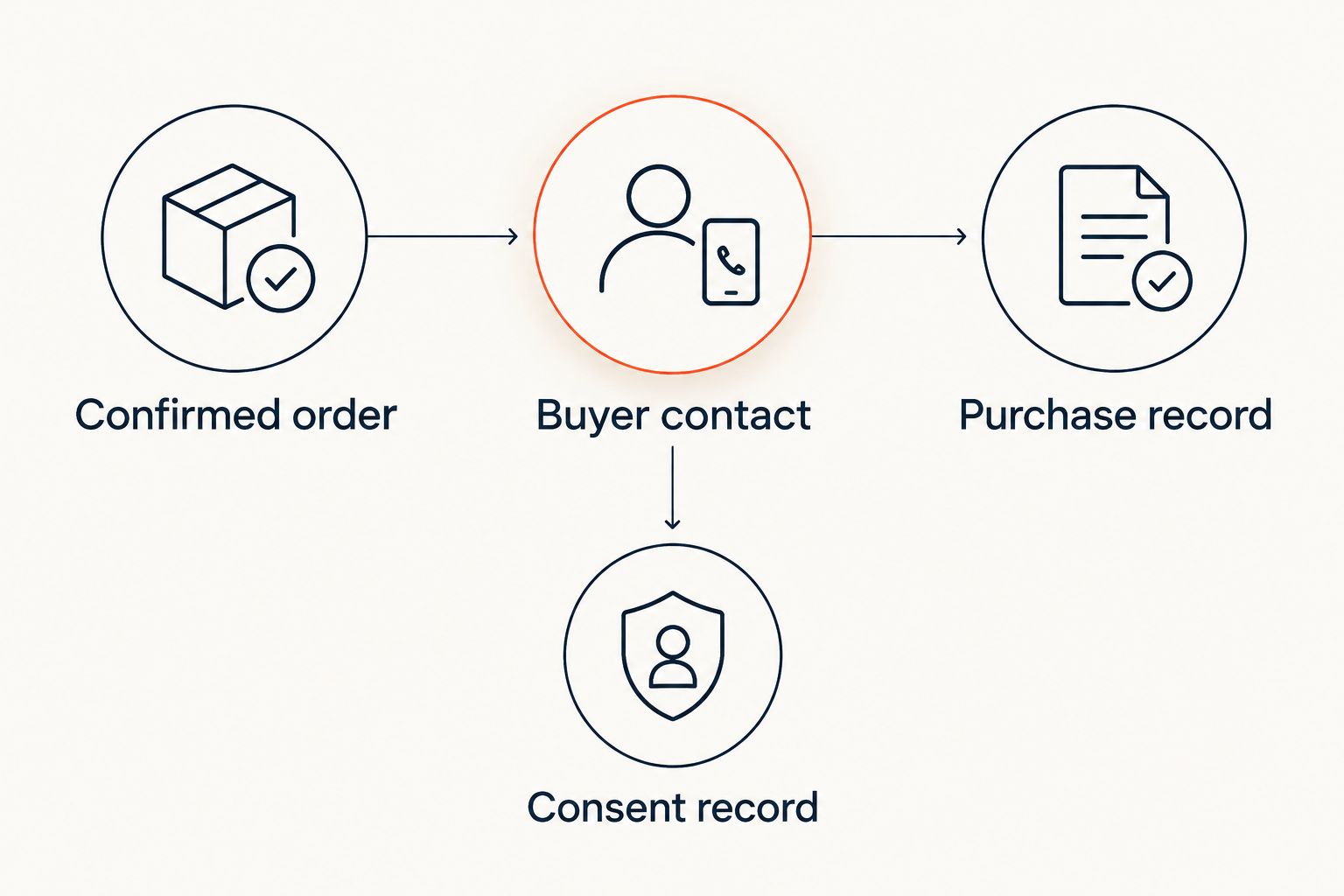
Preserve the record structure
Keep these concepts distinct in your integration design:
- Confirmed order: the source transaction that enters the workflow.
- Buyer contact: the person who placed the order.
- Purchase record: the event-specific transaction linked to that person.
- Consent record: the permission information, independent of the purchase.
This structure prevents a new transaction from erasing an earlier event history. It also gives your team a clear place to investigate an incorrect status.
Validation and activation
Validation proves that the workflow preserves records under repeat delivery and changed information. A successful connection test proves authentication, not data accuracy.
Test the complete path
- Process a confirmed order from a buyer who has no existing CRM contact. Inspect both the contact and the purchase record.
- Process another order from an existing buyer. Confirm that the workflow reuses the contact and preserves both purchases.
- Replay the original order. Confirm that it updates the existing purchase instead of adding a duplicate.
- Test an empty optional field. Confirm that it does not erase a populated CRM value.
- Test a missing or ambiguous contact identifier. Confirm that the workflow records the failure and avoids an incorrect match.
- Test a buyer without recorded marketing permission. Confirm that the workflow does not subscribe that person.
Expected result: new purchases, returning buyers and repeated inputs behave differently where they should, while consent remains unchanged unless a valid source update provides it.
Before your 2026 launch, assign an owner for failed records. Keep the source order identifier, failure reason and processing status accessible to that owner. Exclude unnecessary personal data from error messages.
Reconcile the records
Compare the source orders included in a defined batch or time window with the corresponding CRM purchase records. Investigate missing identifiers, duplicate identifiers and status mismatches before increasing the workflow's scope.
Keep CRM reconciliation separate from traffic measurement. The guide to sending ticket sales data to Google Analytics covers an adjacent reporting workflow; analytics events are not a replacement for contact and purchase records.
Update purchase status when an order changes
An initial purchase sync is incomplete if later cancellations or refunds leave the CRM showing an unchanged order. Add a status-update workflow when your confirmed connection supports those changes.
- Identify the source's documented order-update events or changed-order export.
- Find the existing CRM purchase by its source order identifier.
- Update the transaction status and any supported refund information.
- Preserve the original purchase record rather than deleting its history.
- Review any follow-up automation that depends on the changed status.
Expected result: the CRM reflects the current transaction state without creating a second purchase or removing the original history.
Partial refunds need particular care. Do not mark an entire order as fully refunded because one ticket changed. Follow the granularity the source actually provides; an order-level status cannot substitute for missing ticket-level detail.
For your 2026 follow-up rules, separate purchase, cancellation and attendance conditions. A confirmed purchase does not establish that someone entered the venue.
Troubleshooting
Returning buyers create duplicate contacts
Check the matching step before the create step. Confirm that the workflow searches the intended external identifier or email field and that the search receives a populated value. Put ambiguous matches into review.
Replayed orders create duplicate purchases
Use the source order identifier to find an existing purchase before writing a new one. Do not use a contact identifier as the transaction key: the same person can place multiple orders.
Buyer names disappear after an update
Inspect how empty source fields are mapped. Prevent an absent optional value from overwriting a populated CRM field unless clearing that field is an intentional, authorised action.
CRM contacts become subscribed without permission
Inspect the contact-creation defaults and any downstream subscription automation. Keep purchase status out of the marketing-permission field, then review incorrectly subscribed records through your consent-management process.
Refunded orders still trigger purchase follow-ups
Check whether changed orders enter the integration at all. Then confirm that follow-up rules inspect the current purchase status, not just the original creation event.
Customize your workflow
Expand the data scope only after the basic sync passes reconciliation. Add performance history, supported attendance updates or communication preferences individually, with a matching rule and validation test for each.
Zunaro event ticketing keeps store, seating, box office, kiosk and door check-in on one live inventory. That is useful operational coverage; it is not proof that every field is exposed to your chosen CRM connection. Confirm the available data before promising a segment or report to your team.
The platform's selling mechanisms also have clear boundaries. A WhatsApp agent answers buyers, holds seats and hands over a checkout link. Events are discoverable and bookable inside ChatGPT and Claude, including seat selection on the real map; checkout always completes on the organiser's own site, never in chat. AI that sells your tickets.
Organisers pay nothing per ticket. The buyer booking fee is AED 3.99, or AED 1.99 under AED 20; free events carry none. Ask Zunaro Pro is AED 179/mo with a 14-day trial and no card. These terms do not establish CRM integration access or external automation charges.
Based at DTEC, Dubai Silicon Oasis. Built for the Gulf - the UAE and Saudi Arabia.
FAQ
How do I sync ticket buyer data to CRM automatically?
Use a confirmed-order source, match the buyer to a CRM contact, and create or update a separate purchase record. Confirm that your ticketing platform and CRM support the connection before configuring automation.
Does Zunaro have a native connector for my CRM?
This guide does not confirm a native connector for a particular CRM. Verify the available connection route, fields and permissions before planning the integration.
Should every ticket order create a new CRM contact?
No. Match the buyer to an existing contact before creating one, and keep each order as a separate linked purchase record.
Can I add every ticket buyer to my marketing list?
A purchase alone does not establish marketing permission. Transfer recorded consent separately and check the rules that apply to your communications.
How do I stop duplicate ticket purchases appearing in my CRM?
Use the source order identifier to find an existing purchase before creating a record. Replaying the same order should update that record, not create another.
Should attendee check-in update the buyer's CRM record?
Only when the attendance record identifies that buyer as the attendee. A purchaser can buy tickets for other people, so buyer identity and attendee identity need separate matching rules.
What happens to the CRM record after a ticket refund?
Update the existing purchase status when your connection supports refund updates. Preserve the original order history and distinguish partial changes from a full refund.
One last thing
The most revealing test is the same order sent again. A workflow that handles a new purchase correctly but duplicates it on replay is not ready for unattended operation. Test repetition before you expand segmentation or follow-up automation.