
Every show has seats that never sold - and no one was working on them. Instead of retyping event details across disconnected tools, use an event ticketing platform to create an event by chat, review the details, and publish to your own branded storefront, with organisers paying nothing per ticket.
- ZunaroSpace event ticketing is best for independent organisers who want chat-led setup and their own branded storefront.
- To create an event by chat, prepare the event brief, review ticketing details, then verify the published page.
- Ask Zunaro is the organiser assistant; buyer conversations and checkout are separate workflows.
- Reserved seating needs a checked seat map, not just a completed event description.
- ChatGPT and Claude support discovery and booking; checkout completes on the organiser’s own site.
Why this matters
A chat message starts the work. A checked event page finishes it. An assistant cannot resolve an ambiguous performance date, an unconfirmed venue layout or missing admission rules without your decisions.
ZunaroSpace combines event ticketing, reserved seating, a branded storefront, box office, kiosk and door check-in. Ask Zunaro lets organisers work through the store by chatting rather than treating every task as a separate form-filling exercise.
AI that sells your tickets. The mechanisms are specific: a WhatsApp agent answers buyers and holds seats, while ChatGPT and Claude support event discovery and booking. You keep the fees, the funds and the customers.
For your 2026 workflow, keep organiser instructions separate from buyer conversations. Creating an event in Ask Zunaro is not the same task as helping an attendee choose a seat.
Before you start
- Account and access: Have access to the organiser account and the store where the event belongs. Open Ask Zunaro, the organiser assistant, rather than a buyer-facing conversation.
- Approved event brief: Prepare the event name, performance date, local time, venue address, description, admission rules and ticket structure. Include approved Arabic and English copy where needed.
- The gotcha: Decide whether admission is general or reserved before building the event. A description of the room is not a verified seating plan; reserved seating requires checking the actual map before selling seats.
Keep the source brief beside the conversation. When the assistant asks for clarification, answer from that brief rather than improvising details that later appear on the public page.
Event brief configuration
Give the assistant a complete instruction
- Open Ask Zunaro in the intended organiser account. State that you want to create an event for that store, and identify the venue clearly if your working materials cover several locations.
- Provide the approved event name, date, local time, address and description together. Spell out the month and year rather than using an ambiguous numeric date.
- State the admission model and ticket structure. Ask the assistant to identify missing information before proceeding, and request a review before anything becomes public.
Use a prompt shaped like this, replacing the descriptive phrases with your approved details:
Create an event for my store using the event brief below. Use the approved name, performance date, local time, venue address and description exactly as supplied. Set up the admission model described in the brief. Identify missing information and show me what needs review before publication.
This is an instruction template, not a claim that a particular confirmation screen exists. Read the assistant’s response and follow the action it presents; do not assume that sending a message has published the event.
Expected result: The response reflects the intended event and identifies unresolved details. Compare it with the source brief before continuing.
Check meaning, not just spelling
An event can read well and still be wrong. Confirm that the performance date, doors time and start time mean what your operations team intends; do not let one stand in for another.
For a 2026 event, include 2026 explicitly in the brief. Also distinguish the venue’s public name from its address so the published information tells attendees where to arrive, not merely who operates the space.
Admission and seating configuration
Choose the inventory model
- Specify whether attendees enter without assigned seats or select particular seats. Describe the intended admission experience in plain language.
- Supply the approved ticket categories and admission rules. Tell the assistant which categories belong to the same performance and which represent separate performances.
- Review the resulting ticket structure against your operational plan. Check that ticket names explain admission rather than relying on internal abbreviations.
Expected result: The event’s admission model matches how your team will admit attendees. No ticket category depends on an unstated assumption.
| Admission model | Best for | Advantage | Limitation to resolve |
|---|---|---|---|
| General admission | Organisers admitting attendees without assigned seats | No seat-by-seat selection to configure | Capacity and admission rules still need checking |
| Reserved seating | Venues selling specific seats | Attendees select a position on the map | Rows, seat labels and sellable positions require verification |
Choose general admission for unassigned entry; choose reserved seating when the ticket must identify a seat. Neither model removes the need to confirm what the ticket permits.
Verify the map before publication
For reserved seating, prepare the layout before opening sales. The platform can trace a seat map from a photo in about 60 seconds, without CAD or a setup fee; that is map creation, not approval of your venue’s sellable inventory.
Check row direction, seat labels, aisles and positions that must not be sold. Compare the map with the room your team will actually operate, not an outdated seating arrangement.
Use the venue photo to live seat map workflow when seating is the main setup task. Keep the event unpublished until your team has checked the map against the intended layout.
Publication and storefront configuration
Review before making the event public
- Ask the assistant to summarise the event information ready for publication. Compare the name, date, time, venue, admission model and ticket categories with your approved brief.
- Resolve each discrepancy explicitly. Name the event and the detail to change rather than sending an instruction such as “fix the time” without context.
- Complete the publication action presented in the organiser interface. Then open the event on the branded storefront and inspect the public result.
Expected result: You can find the intended event on the storefront, and its public details match the approved brief. A conversational acknowledgement alone is not your publication check.
Inspect the actual booking journey
Read the public page as an organiser checking a sales channel. Confirm that attendees can understand the location, performance time and admission type without asking your team to interpret the listing.
For reserved seating, inspect the map and seat selection. Check that the booking journey leads to your own site for checkout rather than treating a conversation as payment completion.
Arabic and English, including full RTL support, are available. Review both language versions you use: correct layout does not establish that the translation, date wording or venue directions are correct.
For your 2026 launch record, keep the approved brief and the final public details together. That gives your team a reference when someone later requests a change.
Sales-channel verification
Check the event beyond its description
- Confirm that the event appears in the store where you intended to sell it. Compare the public listing with the published details rather than relying on the conversation history.
- Review the channels your team will use: storefront, box office and kiosk. The platform uses one live inventory across these channels and door check-in; your staff still need to identify the correct event.
- Prepare the buyer-facing handoff. The WhatsApp agent answers questions, holds seats and hands over a checkout link; payment completes on the organiser’s own site.
Expected result: Your team knows which event it is selling, which inventory it uses and where checkout completes. Event creation and buyer assistance remain distinct tasks.
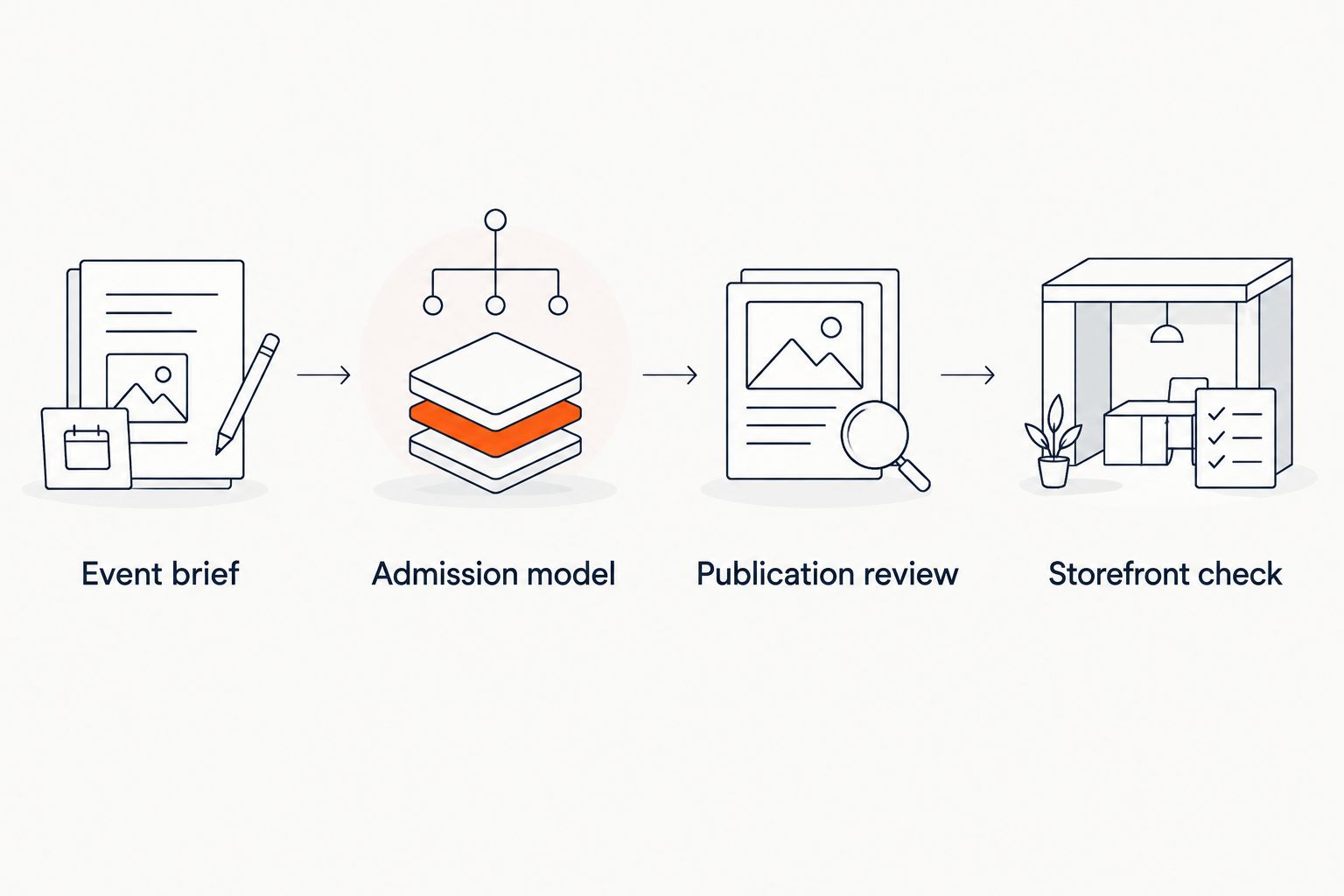
The sequence is straightforward: Event brief, Admission model, Publication review, Storefront check. Each stage checks a different risk, so do not replace the entire sequence with “the assistant said it was done”.
Update a published event by chat
The adjacent workflow is a correction to an existing event, not another creation request. Identify the existing event before describing the change.
- Open Ask Zunaro and identify the published event by its exact name, date and venue. State that you want to update that event rather than create another listing.
- Describe the change and what must remain unchanged. For a wording correction, explicitly preserve the performance date, admission structure and seating arrangement.
- Review the response, complete any action presented and reopen the public event. Confirm the correction against the approved information.
Expected result: The existing public event contains the intended correction, without an unintended duplicate listing.
A schedule change needs more than an edited description. Before changing a published performance, decide how your team will handle existing attendees and associated communications; do not assume that an event edit automatically notifies them.
Keep a 2026 change record with the approved correction and the public result. This is especially useful when several staff members work on the same event.
Troubleshooting
The assistant has the wrong date or time
Rewrite the instruction with the month spelled out, the year included and the venue’s local time identified. Separate doors time from performance time, then check the public page after completing the correction.
The conversation looks complete, but the event is not public
Return to the organiser interface and check the event’s current state. Complete the publication action presented there, then verify the storefront; do not repeat the creation request before checking whether the event already exists.
The seat map does not match the room
Stop before selling assigned seats. Compare the map with the venue layout, resolve incorrect labels or sellable positions and check the result again; a fast photo trace does not replace venue approval.
A correction produces another event listing
Identify the intended event by name, date and venue before requesting further changes. Check both listings in the organiser interface and resolve the unintended listing before directing anyone to the public page.
The public copy mixes Arabic and English incorrectly
Supply the approved wording for each language separately. Inspect the rendered page in both languages, including RTL layout, rather than treating a successful text update as a completed language review.
Customise your workflow
ZunaroSpace event ticketing is best for independent organisers who want chat-led setup and their own branded storefront. Its advantage is that store, seating, box office, kiosk and check-in share live inventory. The trade-off is operational: you still approve event details, seating and the public booking journey.
Add buyer assistance after the event is correct. A WhatsApp agent can answer questions, hold seats and provide the checkout link; ChatGPT and Claude support discovery and booking, including seat selection on the real map. Checkout always completes on the organiser’s own site, never in chat.
The economics are explicit: organisers pay nothing per ticket. Buyers cover a booking fee of AED 3.99, or AED 1.99 for tickets under AED 20; free events carry none. Ask Zunaro Pro is AED 179/mo, with a 14-day trial and no card required.
For your next 2026 event, reuse the brief structure rather than copying unchecked details from the previous show. Keep the review stages even when the conversation gets shorter.
Explore your event workflow
Bring your event brief and review chat-led setup, seating and your branded storefront.
FAQ
How do I create an event by chat?
Use Ask Zunaro to provide your event brief, resolve missing details and review the result before publication. Then check the published event on your branded storefront.
What information should I prepare before creating an event?
Prepare the approved event name, date, local time, venue address, description and admission structure. Reserved seating also requires a checked map of the intended layout.
Does sending the chat message mean my event is published?
Do not treat a sent message as proof of publication. Complete the action presented in the organiser interface and verify the event on the public storefront.
Can I create reserved seating from a venue photo?
The platform can trace a seat map from a photo in about 60 seconds, without CAD or a setup fee. Check seat labels, aisles and sellable positions before opening sales.
Can I use chat to update a published event?
Use Ask Zunaro to request a change to the existing event, identifying it by name, date and venue. Review the response and verify the corrected public page rather than assuming the request is complete.
Do attendees pay inside ChatGPT or Claude?
No, checkout completes on the organiser’s own site. ChatGPT and Claude support discovery and booking, including choosing a seat on the real map and holding it.
Does the platform support Arabic event pages?
The platform supports Arabic and English with full RTL support. Review the approved wording and rendered page in each language before directing attendees to it.
One last thing
The most useful final check happens outside the chat. Open the published event and compare it with the approved brief; that catches a gap a polished conversational reply cannot prove away.
ZunaroSpace is based at DTEC, Dubai Silicon Oasis. Built for the Gulf - the UAE and Saudi Arabia.